
Freebies · Claude Resources
Build your own Converter wheel with Claude Code
Drag a file and a spinning wheel appears next to your cursor. Drop it on JPG, PDF, MP4 or another format and the file is converted. With the steps and prompts to build it yourself.
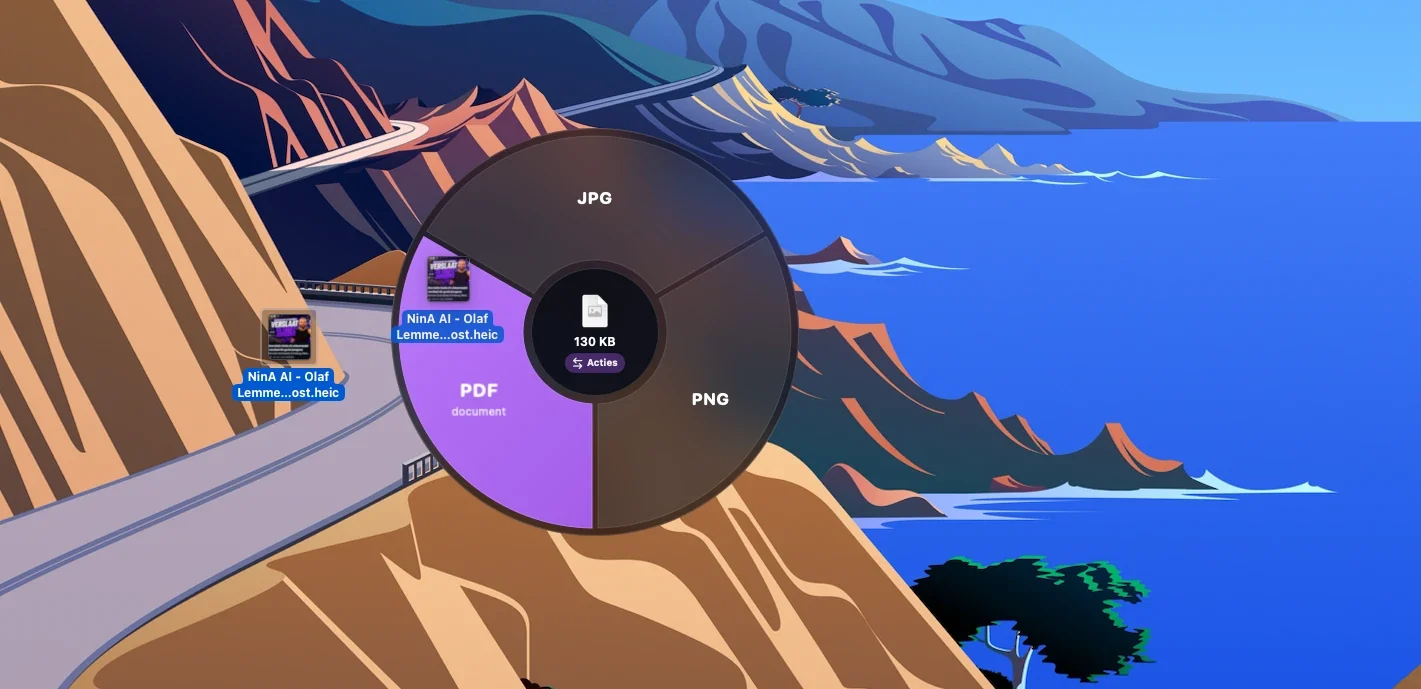
Drag a file and a spinning wheel appears next to your cursor. Drop it on JPG, PDF, MP4 or another format and the file is converted, right next to the original. I saw the idea on LinkedIn and had Claude Code build my own version, without writing any code myself. Below are the steps and the prompts to build it yourself.
What you build
A menu bar app for your Mac. The wheel only shows formats that fit the file you drag. Rest the file on the centre for a moment and the wheel switches to actions.
| You drag | Formats | Actions |
|---|---|---|
| Photo or image (HEIC, JPG, PNG, WebP) | JPG, PNG, HEIC, WebP, PDF | Smaller, Remove background, Extract text, Remove metadata |
| DOCX, JPG, PNG, TXT | Smaller, Remove metadata | |
| Video (MOV, MP4) | MP4, MOV, GIF, M4A, WAV | Smaller, Remove metadata |
| Audio (MP3, M4A, WAV) | M4A, WAV, AIFF | |
| Document (Word, RTF, Markdown) | PDF, DOCX, RTF, TXT, HTML |
Everything runs locally with macOS's own building blocks. No file goes to a server and there is no subscription on the app. You drag the result straight out of the wheel to your desktop or into an email.
What you need
- A Mac with macOS 14 (Sonoma) or newer.
- A Claude plan with Claude Code: Pro, Max, Team or Enterprise. The free plan does not work.
- Apple's developer tools. They are free and you install them in step 1.
- About an hour. Claude Code does most of the work, you approve and test.
Step by step
- 1
Install the developer tools
Open Terminal, paste this command and click Install in the window that appears.
xcode-select --install
- 2
Install Claude Code
Then open a new Terminal window. Rather not use Terminal? The Claude app for Mac has Claude Code built in.
curl -fsSL https://claude.ai/install.sh | bash
- 3
Create a project folder and start Claude Code
The first time you log in through your browser.
mkdir ~/converter && cd ~/converter && claude
- 4
Paste prompt 1
Claude Code asks for permission to create files and run commands. Grant it for this folder.
- 5
Paste prompt 2 once Claude Code is done
It builds the app, tests every conversion and puts it in your Applications folder.
- 6
Try it out
Look at the top right of your menu bar, drag a photo from your desktop and drop it on PNG.
- 7
Fine-tune with prompt 3 or 4
Tip: paste commands without anything after them. The Terminal on your Mac does not read a # as a comment.
Prompt 1: the build prompt
Paste this prompt into Claude Code. It describes what you see, which formats are included and how it should work technically. That last part in particular saves you an evening of bug hunting.
Build a native macOS app in Swift called "Converter": a menu bar app that shows a spinning wheel on my desktop as soon as I drag a file. I drop the file on a segment of the wheel and the app converts it.

WHAT I WANT TO SEE
- When I start dragging a file anywhere (Finder, desktop, Mail), a round wheel of about 420 points appears next to my cursor: to the right of it, or to the left if the screen ends there.
- The segments show the target formats for that kind of file. The segment under my cursor lights up.
- If I rest the file on the centre for half a second, the wheel switches between formats and actions.
- After dropping: a progress ring in the centre, then the result (icon and name). I can drag that result out of the wheel to my desktop or an app. Clicking reveals it in Finder.
- If I drop next to the wheel, it disappears. After a conversion it disappears after 8 seconds, unless my mouse is on it.
- The result goes next to the original with a unique name (photo.png, photo 2.png). Never overwrite a file.

FORMATS AND ACTIONS
- Image (jpg, png, heic, webp, tiff, gif, bmp): JPG, PNG, HEIC, WebP (only show if ImageIO can write WebP) and PDF (A4). Actions: Smaller (JPG of at most 2560 px), Remove background (Vision, VNGenerateForegroundInstanceMaskRequest, as a transparent PNG), Extract text (Vision text recognition to .txt), Remove metadata (strip EXIF and GPS, keep rotation).
- PDF: DOCX, JPG and PNG (one image per page, in a new folder for multiple pages) and TXT (text recognition if the PDF is a scan). Actions: Smaller, Remove metadata.
- Video (mov, mp4, m4v): MP4 and MOV (without re-encoding when possible), GIF (12 frames per second, 480 px wide), M4A and WAV. Actions: Smaller (HEVC up to 1080p), Remove metadata.
- Audio (mp3, m4a, wav, aiff, flac, caf): M4A, WAV, AIFF.
- Document (docx, doc, rtf, odt, html, txt, md): PDF (A4, 2 cm margin), DOCX, RTF, TXT, HTML.
- Dropping several images and PDFs on PDF at once creates a merged PDF.
- Never offer the format the file is already in.

TECHNICAL (IMPORTANT)
- Use only Apple frameworks: AppKit, SwiftUI, ImageIO, PDFKit, AVFoundation, Vision and the Cocoa text system. No external packages.
- Drag detection without Accessibility permissions: a global and a local NSEvent monitor on leftMouseDown start a 60 Hz timer. While the mouse button is down it reads NSEvent.pressedMouseButtons, NSEvent.mouseLocation and NSPasteboard(name: .drag).changeCount. When the changeCount changes, read the file URLs from that pasteboard.
- The wheel lives in a borderless, transparent NSPanel with .nonactivatingPanel, level .popUpMenu and the collectionBehavior canJoinAllSpaces and fullScreenAuxiliary. The window must never steal focus.
- Draw the wheel in SwiftUI inside an NSHostingView. On top of it, place a custom NSView that receives the drop (registerForDraggedTypes with .fileURL) and uses the same geometry as the drawing to decide which segment is under the cursor. Hide that view as soon as the result is shown, so I can drag the result (an NSView that is an NSDraggingSource) out.
- Menu bar menu: Show wheel (always, only with Option, or on shake), Save result (next to the original or in Downloads), Open at login (SMAppService), Open the wheel, Quit.
- Look: dark glass (NSVisualEffectView with .hudWindow), slightly transparent segments, the active segment in a purple gradient (#bf80ff to #9952e0), white text, an SF Symbol per action.
- Make it a Swift Package (swift-tools-version 5.9, macOS 14) with a build.sh that runs swift build -c release, turns it into Converter.app (Info.plist with LSUIElement), signs it ad hoc and with --install puts it in /Applications and launches it.
- Add a command --selftest <samples folder> <output folder> that runs every conversion on sample files and checks that each result can be opened again.

WAY OF WORKING
Build it in steps. Run swift build after each step and fix all errors before moving on. Create sample files for the selftest with tools available on every Mac (sips, textutil, say, afconvert, avconvert). At the end, briefly tell me how to use the app.
Prompts 2 to 4: build, improve and make it yours
Run ./build.sh. If the build fails, fix the errors and try again until the app builds. Then run the selftest and fix whatever fails until everything passes. Finally install it with ./build.sh --install.
I tested the wheel with real files. This is not right yet: [describe what you see, for example: the wheel appears too far from my cursor, or the GIF gets too big]. Fix it, run the selftest and install again.
Add an action to the wheel for images: [for example "Instagram", which crops the photo to 4:5 and resizes it to 1080 px wide]. Follow the same structure as the other actions, add it to the selftest, build and install again.
The same approach works for your own brand colour: ask Claude Code to give the active segment your colour.
No Mac? Build the web version
This variant works in any browser, including on Windows. Instead of the wheel you get a drop area with big buttons per format. Here too, everything stays on your own computer.
Build a web app that converts files entirely in the browser, without uploading to a server. Use only HTML, CSS and JavaScript, without a build step.
- I drag files or a whole folder into the window. Per kind of file I choose a target format with big buttons. Per file I see a preview, the progress and how much smaller the result is.
- Images via canvas: JPG, PNG, WebP, GIF, ICO and PDF, with quality and maximum size. HEIC and TIFF with a fallback decoder for browsers that cannot read them.
- Video and audio with Mediabunny (WebCodecs): MP4, WebM, GIF, MP3, M4A, WAV, OGG and FLAC.
- PDF with pdf.js and pdf-lib: per page to JPG or PNG, extract text, merge.
- Word with mammoth, Markdown with marked, and Excel, Numbers, CSV and JSON with SheetJS. CSV with semicolons and decimal commas for Dutch Excel.
- Download separately or as a ZIP.
- Put all libraries locally in a vendor folder and make it a PWA that works offline and can live in the Dock.
Test every conversion with Playwright and real sample files, and fix whatever fails.
If it does not work
| What you see | What you do |
|---|---|
| xcode-select: error: invalid argument '#' | Paste the command without anything after it. The Terminal does not read # as a comment. |
| command not found: claude | Open a new Terminal window after the installation. |
| xcrun: error or swift: command not found | The developer tools are still missing: run xcode-select --install. |
| Red error: lines while building | Paste them back into Claude Code and say: fix these errors. |
| The wheel does not appear when you drag | Click the icon in your menu bar and set Show wheel to Always. |
| The wheel gets in the way during normal dragging | Set Show wheel to Option or Shake. |
| macOS asks for access to Desktop or Documents | Click Allow. The app saves the result next to the original. |
Made with Claude Code by Olaf Lemmens, NinA AI Agency. Questions, or tools like this for your own team? Send me a message on LinkedIn.